
WordPress 7.0 is finally here. Instead of just skimming the release notes or rehashing what other blogs already said, we installed it ourselves and spent real time poking around to see what actually feels different for everyday users.
For this review, we set up the new version in a test environment and put it side by side with WordPress 6.x. Our focus wasn’t on deep developer internals, it was on the things website owners, editors, bloggers, agencies, and business users actually bump into while using WordPress every day.
After living in both versions for a while, version 7 feels less like a brand-new platform and more like a cleaner, faster, better-organized WordPress. A few changes are useful right away. Others are more foundational and will probably matter more as later updates build on them.
The first thing that stood out after setup was how much smoother the dashboard and editing felt. Nothing looks wildly unfamiliar, so existing users won’t feel lost. But the small refinements in navigation, content management, editing, and design controls add up to a noticeably more polished workflow.
Plenty of simple tasks in 6.x used to need extra clicks, an extra plugin, or a bit of custom CSS. In the new version, several of those same jobs can be handled right inside the editor.
That’s really the heart of this update: it reduces friction. It doesn’t reinvent everything, but it makes a lot of common tasks faster and cleaner.
One of the most talked about additions is the new AI infrastructure. Unlike a lot of website builders that rush to bolt on a built-in AI writer, WordPress took a different route. After testing, we couldn’t find an obvious “Write with AI” button sitting in the editor. What’s there instead is a foundation that lets AI tools and plugins connect to the platform in a more standardized way.
For the average site owner, that might not feel like much right now. But it matters, because it sets up a shared framework for future AI features, content suggestions, automated SEO tips, AI-generated alt text, workflow automation, and smarter content tools.
In earlier versions, every AI plugin did its own thing with its own integration method. This update nudges things toward a more organized ecosystem that can support multiple AI providers and services.
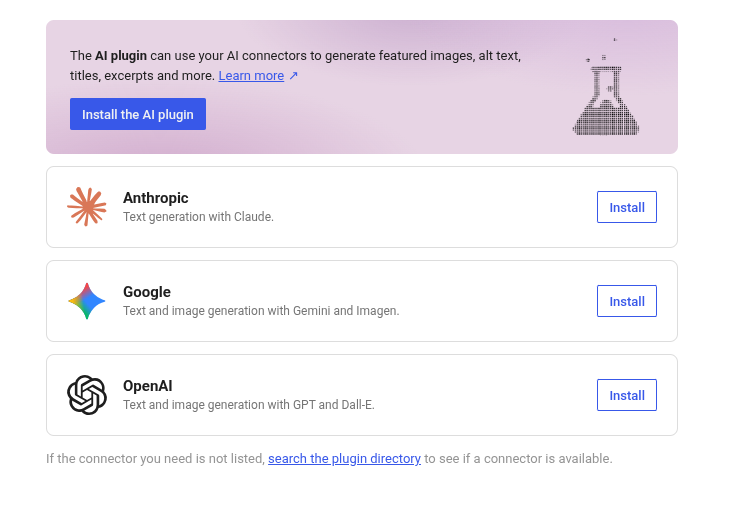
Right now there’s very little visible change for normal users. The real win is that future AI plugins should slot into WordPress more smoothly and behave more consistently.
Anyone hoping for ChatGPT style writing baked straight into the editor will probably be let down. The plumbing is in place, but most of the user facing AI experiences still depend on plugin developers building on top of it. For now it reads less like a finished feature and more like WordPress getting ready for the next generation of site management tools.
One of the genuinely useful upgrades in WordPress 7.0 is the improved content management experience through DataViews.
Handling a big pile of posts, pages, media, or custom content used to feel a little slow and messy. Filtering, hunting for a specific item, and moving around the admin area worked, but it was never exactly smooth.
Now it feels more organized. Sorting, filtering, and browsing content is easier, especially on sites that already have a lot of pages or posts. On a tiny site you might not notice. But for agencies, news sites, busy blogs, WooCommerce stores, or content-heavy businesses, it’s a real help.
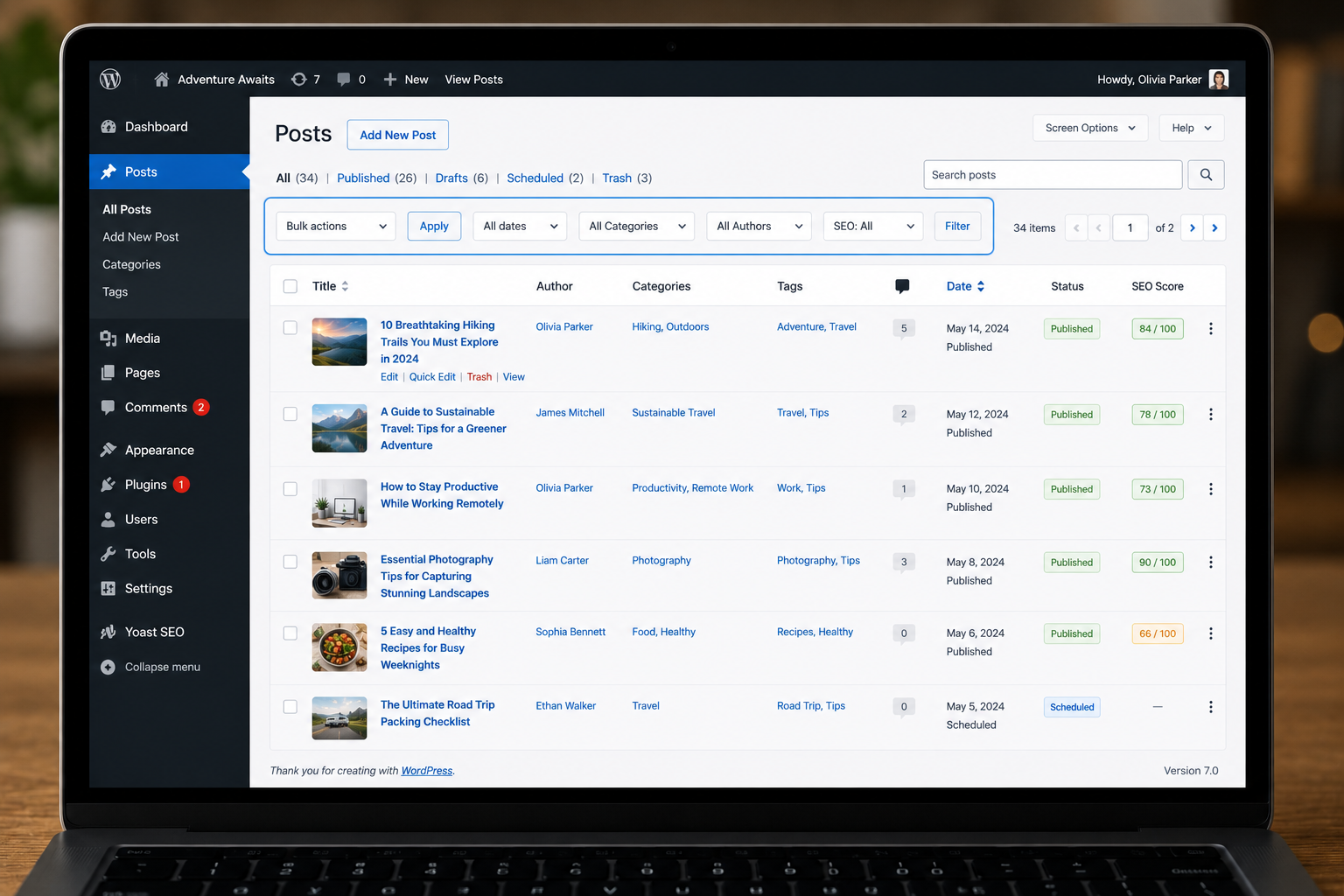
Managing posts and pages feels cleaner, finding content is quicker, and the dashboard finally feels modern instead of dated.
Load up too many plugins or custom post types and the admin area can still get crowded. The new version improves the experience, but it doesn’t magically fix the clutter that plugins pile on.
The Gallery block change is one of the most practical for normal users.
Before, a polished gallery with lightbox or slideshow behavior usually meant installing a separate plugin, more setup, more plugins to manage, and sometimes a slower site.
Now the Gallery block ships with a better built-in lightbox and slideshow. Images open in a modal, visitors can click through them, and the whole thing feels complete without a third-party add-on. Photographers, restaurants, hotels, portfolios, online stores, blogs, and agencies that show off images will all get something out of this.
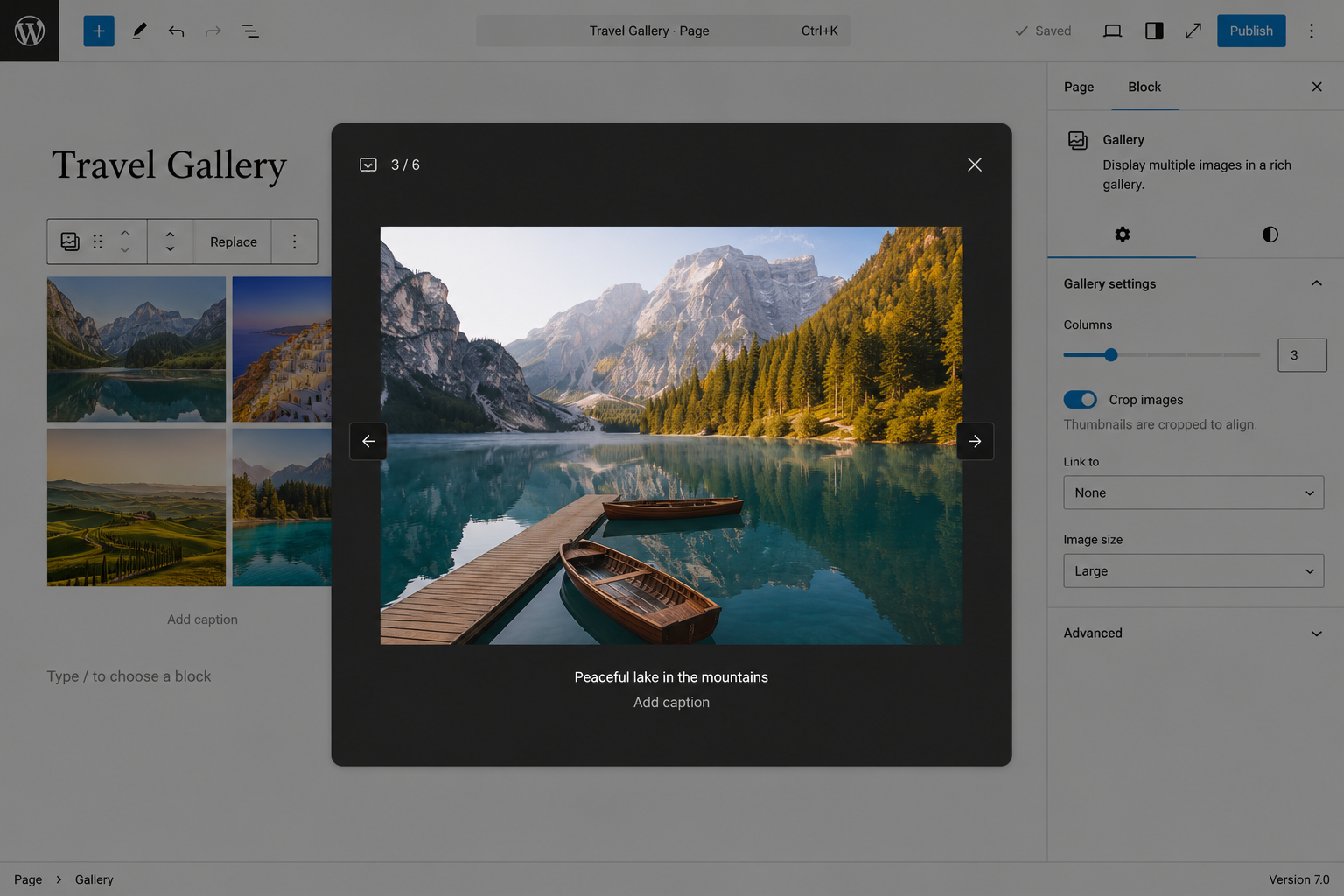
Putting together a simple image gallery is faster now, and there’s no need to go plugin-hunting just for basic lightbox behavior.
For fancy gallery designs, custom animations, masonry layouts, or complex portfolio filtering, a dedicated plugin is still the way to go. For most everyday galleries, though, the built-in option is plenty.
The improved Font Library is another feature that earns its keep during real editing.
Font handling used to lean on the theme, custom code, or a typography plugin, which made branding fiddly especially when you wanted the same font style across every page.
Now font management is more direct. You can manage and apply fonts straight from inside WordPress. For agencies and business sites that’s a big deal, because typography is part of the brand, and a site shouldn’t depend on random theme settings just to stay consistent.
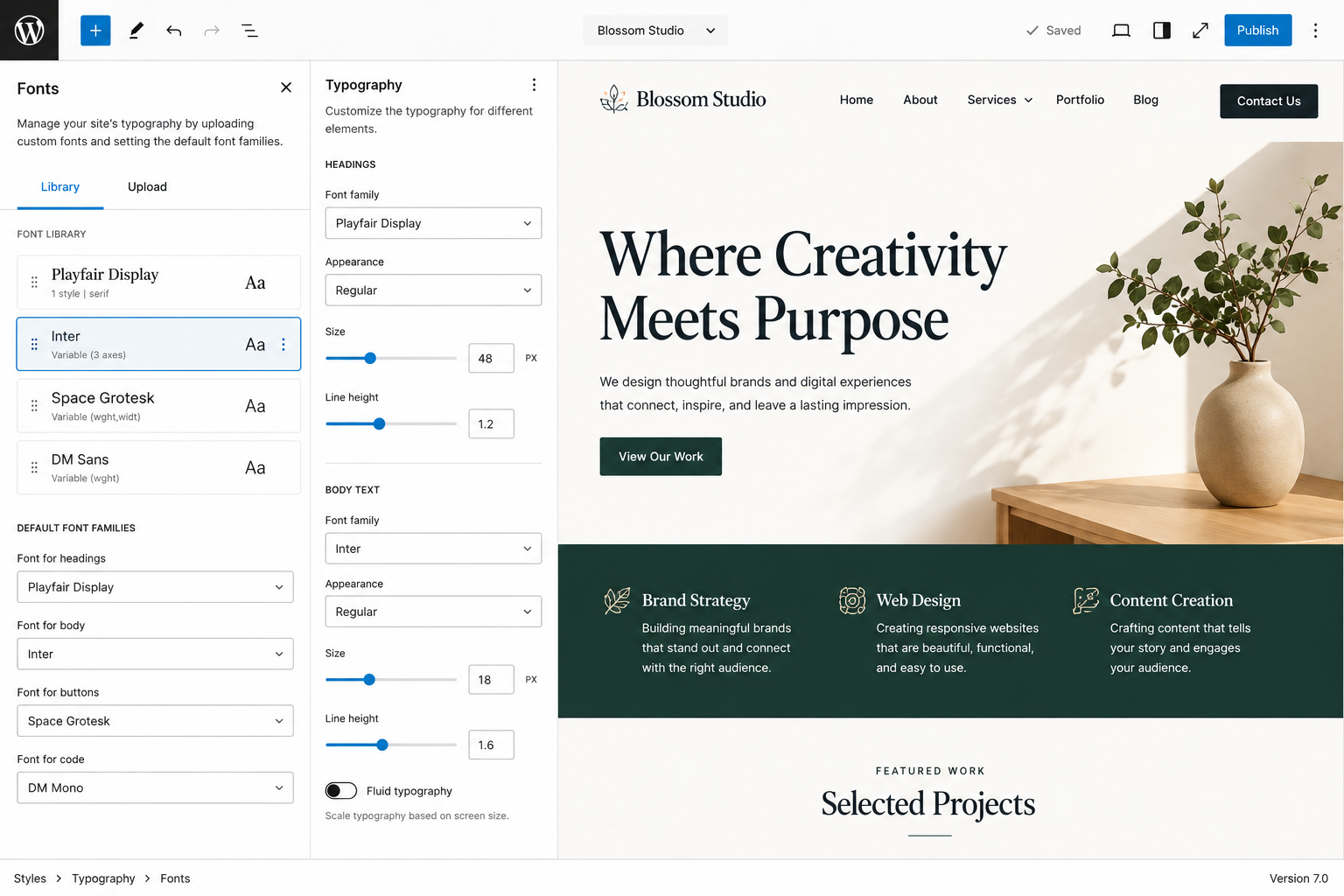
Swapping and managing fonts is simpler, and keeping branding consistent across the whole site is much less of a chore.
If you’re brand-new to typography, you’ll still need a bit of design sense. The tool is easier, but it won’t decide which font pairing actually looks good for you.
Responsive design is one of the most important parts of building a modern site.
In 6.x, making a layout look right on desktop, tablet, and mobile often meant extra CSS, theme tweaks, or a page builder. The latest release hands you better responsive editing controls instead.
During testing, layout tweaks felt easier because you get more say over how blocks behave at different screen sizes. That’s handy for landing pages, service pages, blogs, and WooCommerce product pages, where the mobile experience really matters.
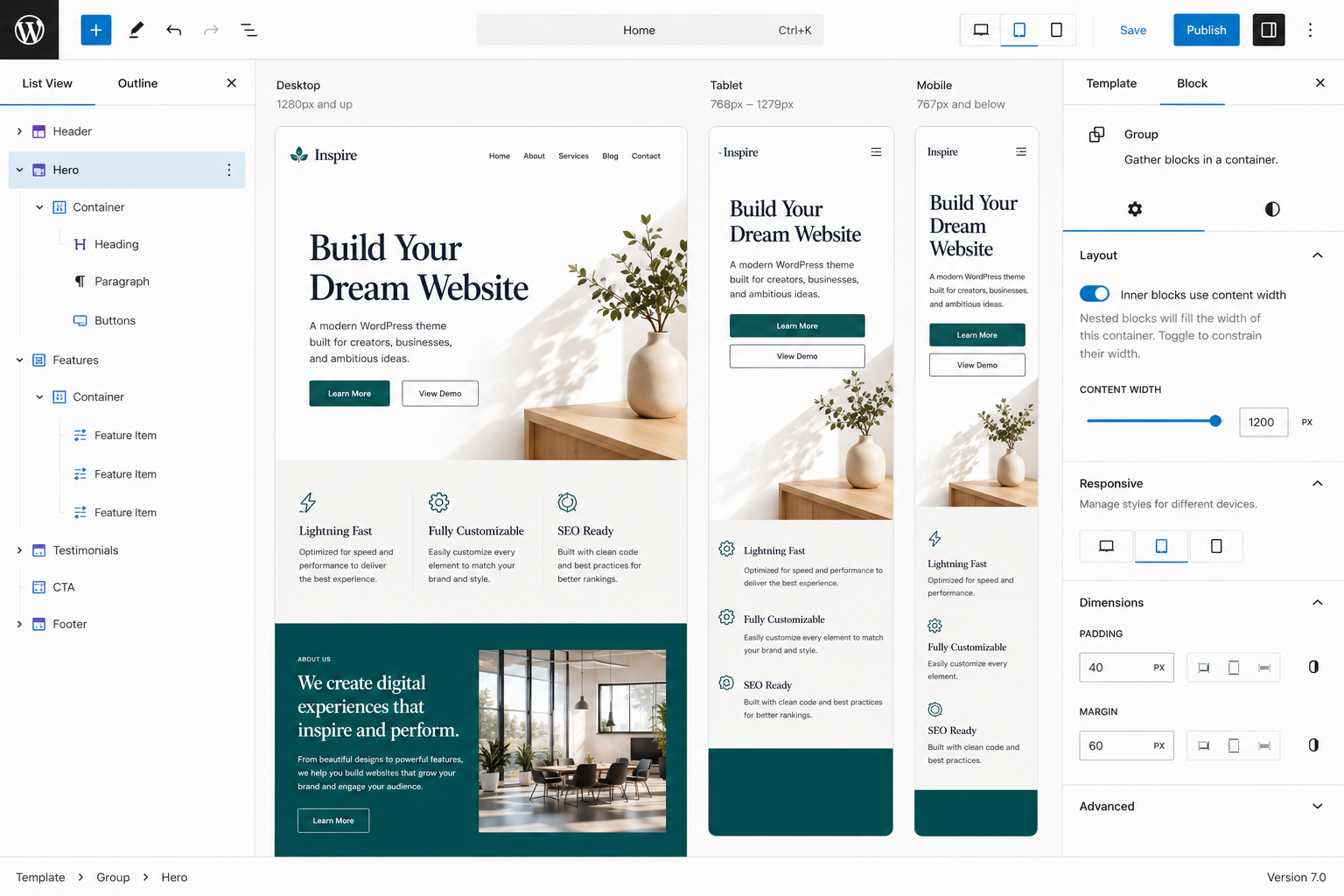
Getting sections to look good on mobile is more manageable, and you’ve got more control before you ever have to touch custom CSS.
It’s better, not perfect. Complex layouts can still need manual adjustments or a developer’s help, and you’ll still want to preview pages properly before hitting publish.
The Command Palette is a small feature, but it quietly improves your workflow once it clicks.
Rather than clicking through menu after menu, you can hit Ctrl + K or Command + K and jump straight to pages, settings, templates, and tools.
It might not feel necessary at first. After a few uses, though, it’s genuinely handy especially if you’re in the dashboard every day. Agencies, developers, and content managers who hop between sections constantly will save real time.
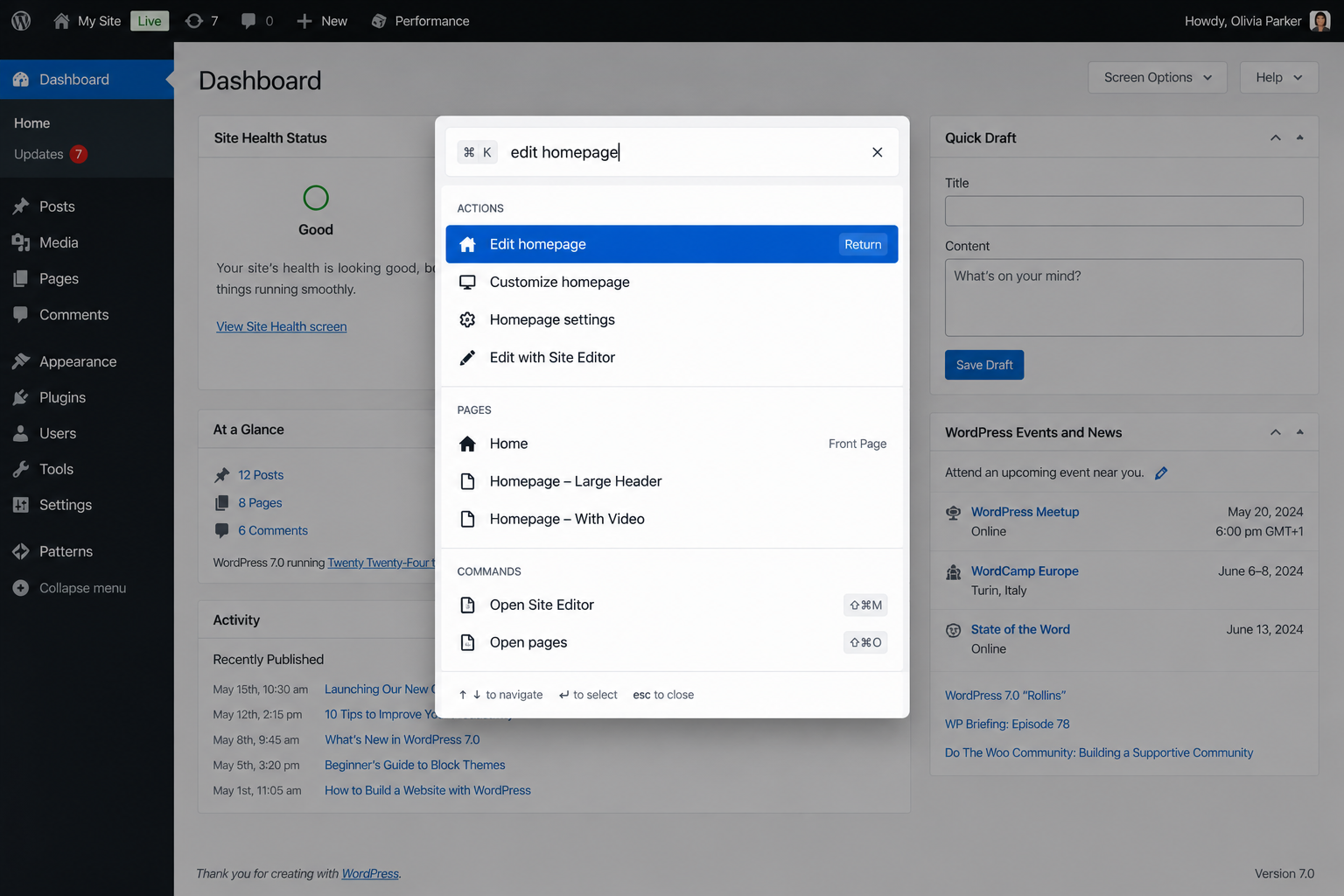
Getting around is faster, and you can jump to the important areas without digging through the sidebar.
New users will probably ignore it unless someone points it out. It’s powerful, but not everyone stumbles onto it naturally.
Version 7 adds a Breadcrumb block, which is handy for sites with lots of pages, categories, or service sections.
Breadcrumbs used to be the job of an SEO plugin or a custom theme feature. Now you can drop breadcrumb navigation in more directly from the editor.
That’s useful because breadcrumbs help visitors get their bearings and understand where they are on your site. A service page can show a path like:
Home > Services > Web Design
which makes the structure clearer at a glance.
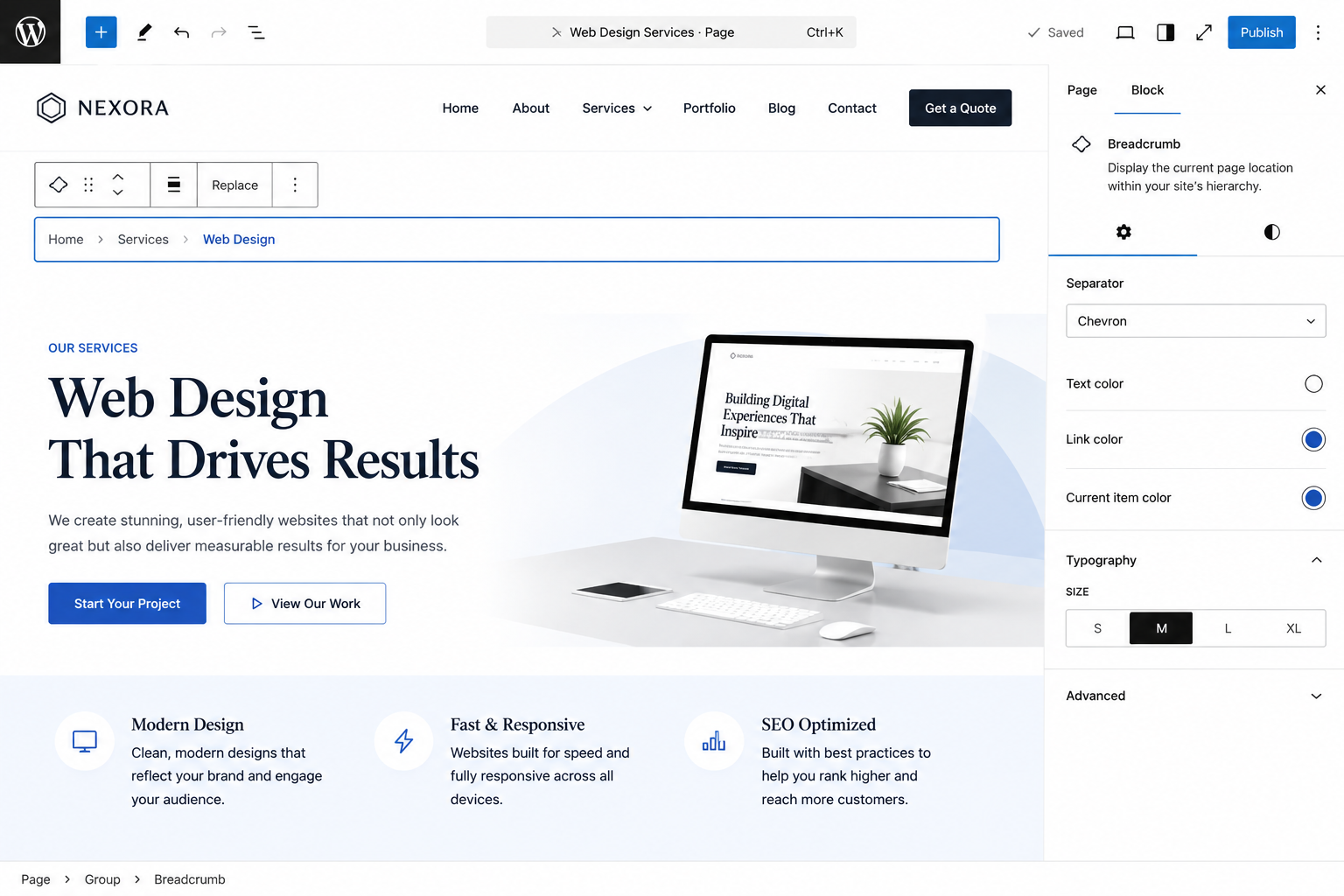
Adding breadcrumbs is more direct now and far less dependent on plugins.
You still need to think about where breadcrumbs belong. Drop them in the wrong spot and they can look redundant or just clutter the design.
Icons show up everywhere service sections, buttons, feature cards, landing pages.
Adding them used to mean an icon plugin, SVG uploads, or a page builder. The new Icon block bakes better icon support right into the editor.
That makes it easier to design modern-looking sections without leaning so hard on external plugins.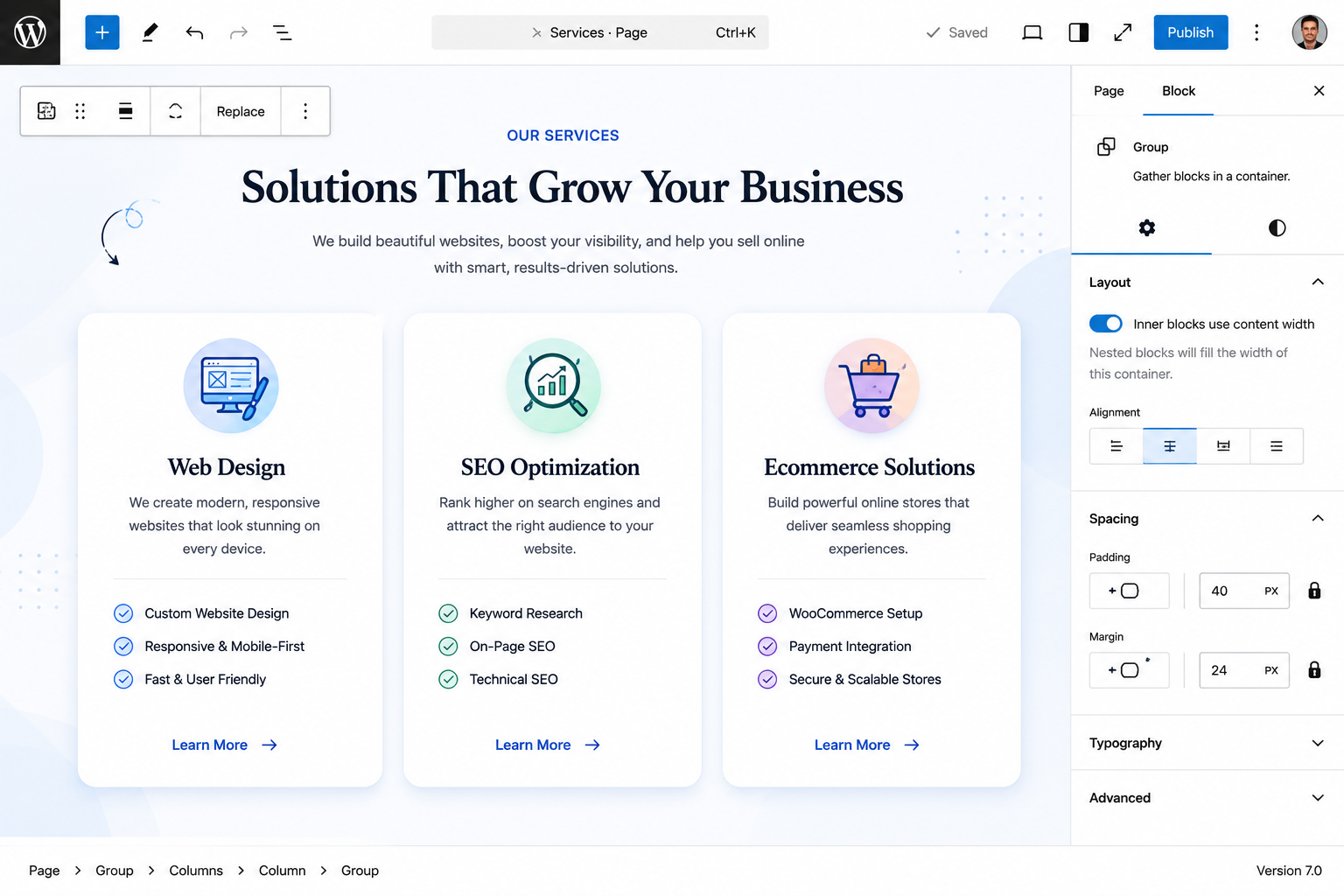
Dropping simple icons onto a page is faster, and service sections and feature blocks come together more easily inside WordPress.
The built-in set won’t cover every brand. Some sites will still want custom SVG icons to nail a unique look.
The improved Heading block is a small but welcome update.
Before, you’d add a Heading block and then manually switch it to H2, H3, H4, and so on. Now picking the right level is more straightforward, which helps with content structure, SEO, and accessibility.
A clean heading structure helps search engines and screen readers make sense of the page, and it keeps your writing more organized too.
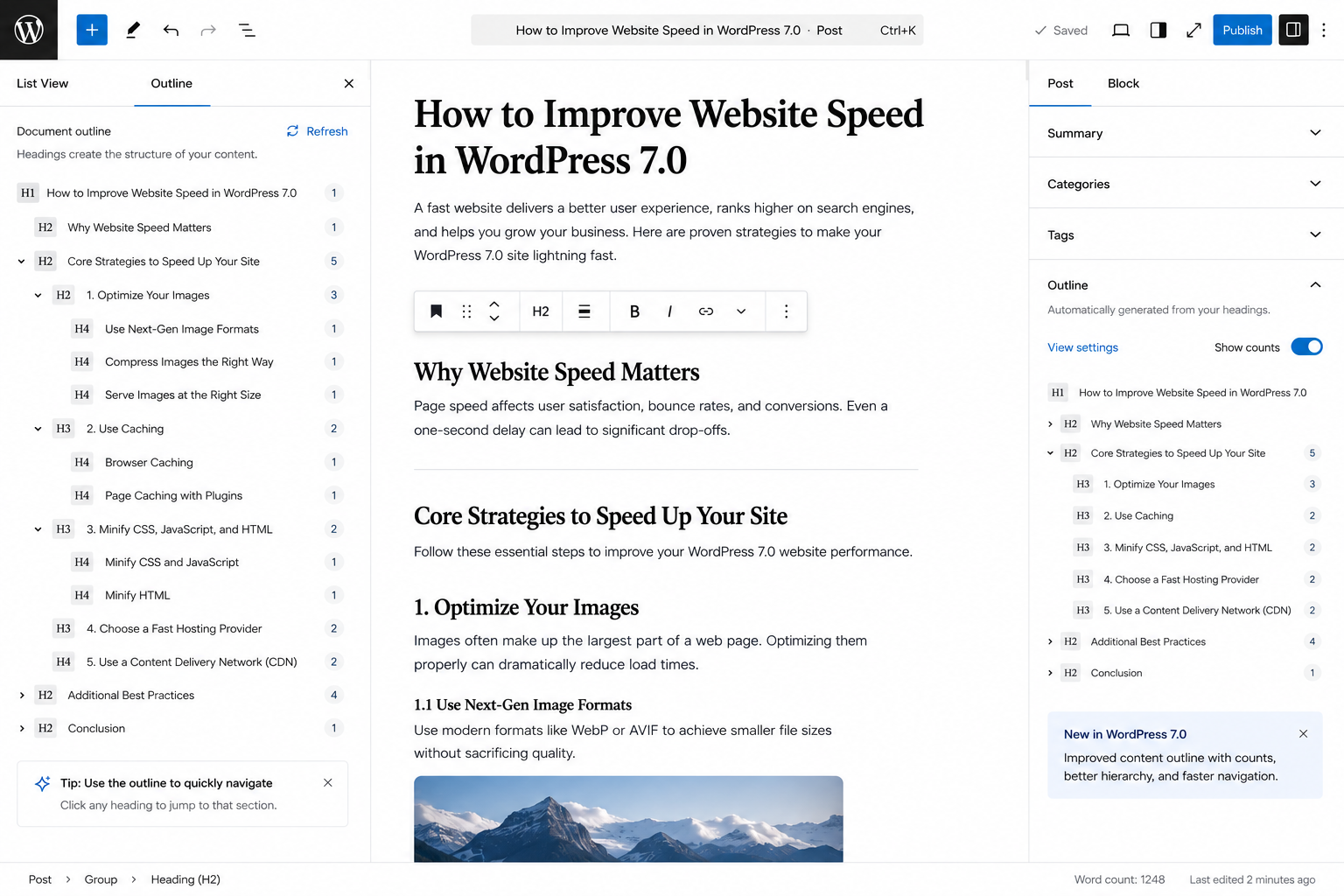
Building a proper content hierarchy is faster, so blog posts and service pages are easier to structure correctly.
The tool helps, but you still have to use headings sensibly. Stacking multiple H1s or jumping around heading levels can still cause SEO and accessibility headaches.
Revisions have always been useful, but the old views were tricky to read especially for design changes.
The new visual revisions make it easier to compare changes before you restore an older version. That’s a relief when several people work on the same site or when a page design changes often.
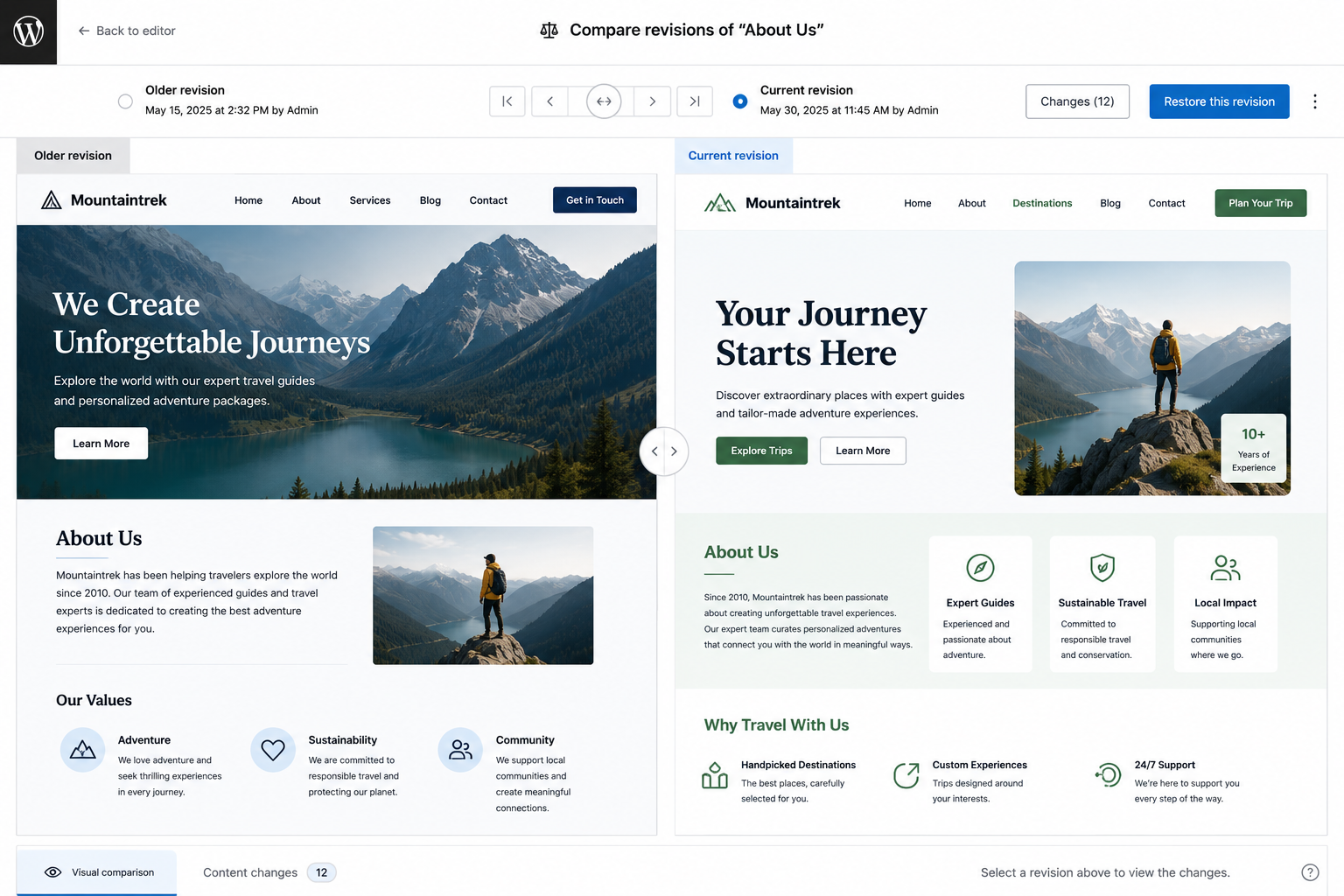
It’s easier to see what actually changed visually, which takes some of the fear out of making design updates.
On very complex pages, revisions still deserve a careful look. Preview a restored version before you publish it.
Editing and dashboard navigation feel smoother in version 7.
In our test setup, the editor handled blocks, media, and page sections better. How much you notice will depend on hosting, theme quality, and plugins, but the overall editing experience feels more refined.
That doesn’t mean every site will suddenly be fast. Real-world speed still rides on hosting, theme optimization, image sizes, caching, plugins, and database health. From a day-to-day usability standpoint, though, it feels more polished.
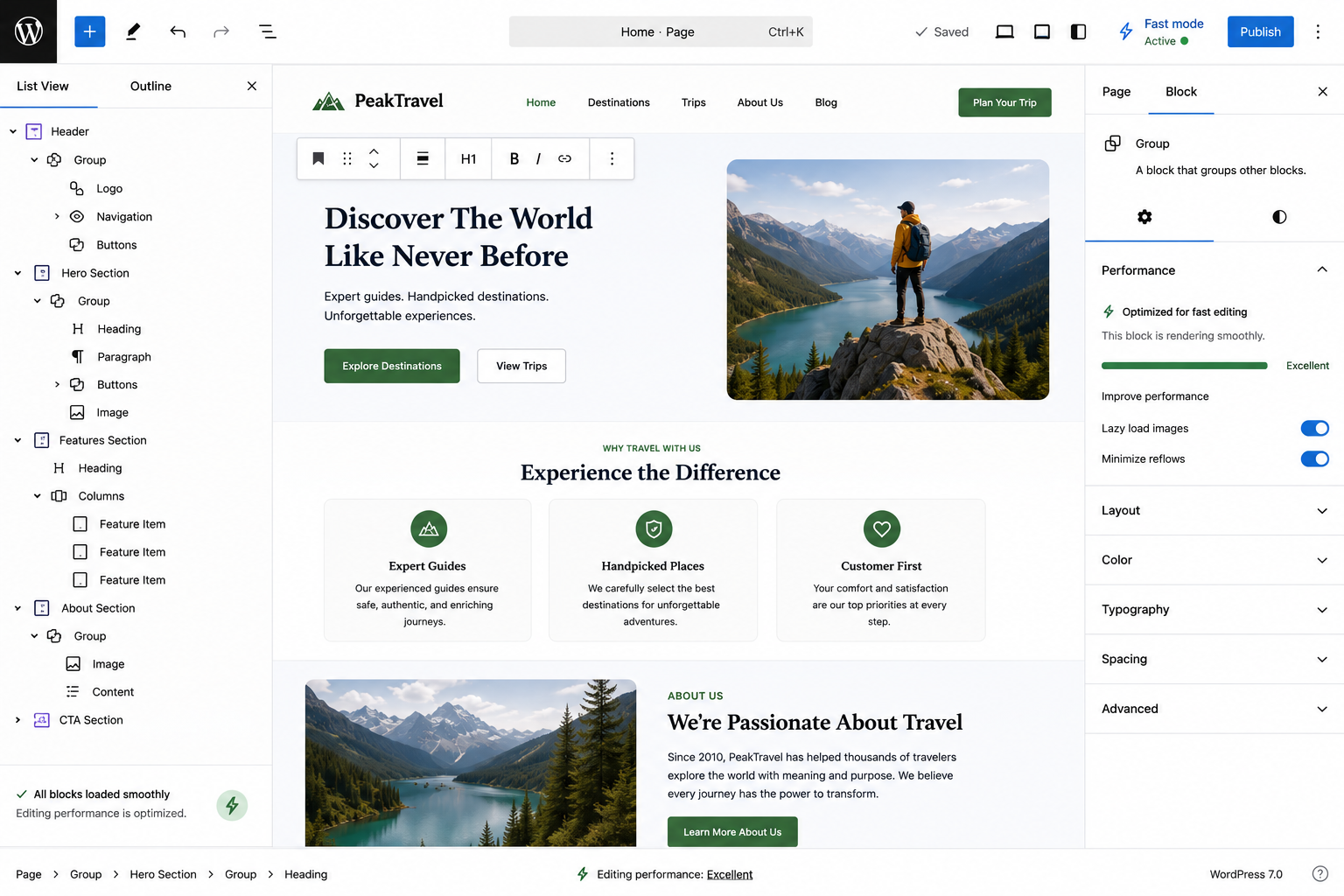
Editing pages feels lighter, and moving around the dashboard feels quicker.
A poorly optimized site will still be slow. This update helps, but it’s no substitute for proper performance work.
After comparing version 7 with the older 6.x experience, these were the improvements we appreciated most:
Built-in gallery lightbox — Images open in a clean modal view without installing a separate gallery plugin.
Easier font management — Brand fonts apply across the whole site without theme hacks or custom code.
Practical responsive editing — Mobile and tablet layouts can be adjusted without diving straight into CSS.
Cleaner content management — DataViews makes sorting and filtering large libraries of content far less painful.
Faster navigation — The Command Palette jumps to any page or setting with a single keyboard shortcut.
Breadcrumb and Icon blocks — Both cut down on plugin dependency for navigation and design elements.
A smoother editor — Everyday editing simply feels lighter and more responsive than before.
The best part is how all these small improvements stack up into a better daily workflow.
It’s not perfect. Some features still need polish, especially for non-technical users. Responsive editing is better, but complex layouts can still be a struggle. The AI features exist as a foundation, but they aren’t a meaningful everyday tool yet.
And if you’re on older themes, outdated plugins, or a heavily customized site, don’t update straight on a live site without testing first.
For most modern sites, version 7 is worth the upgrade.
It brings practical gains for editing, design, navigation, image galleries, content management, and overall workflow. People who manage sites regularly will feel the difference more than those who rarely log in.
Before you update, though, it’s smart to:
Take a full website backup.
Test the update on a staging site.
Check theme compatibility.
Check plugin compatibility.
Review your important pages afterward.
That goes double for WooCommerce stores, custom business sites, membership sites, and anything running a lot of plugins.
Here’s a side-by-side look at how the everyday experience has shifted between the two versions:
| Feature | WordPress 6.x | WordPress 7.0 |
|---|---|---|
| Gallery lightbox | Needed a separate gallery plugin. | Built-in lightbox works out of the box. |
| Font management | Relied on themes or custom code. | Managed directly from the Font Library. |
| Responsive editing | Often required extra CSS. | Better controls for each screen size. |
| Content management | Functional, but slow to filter. | DataViews makes sorting and filtering cleaner. |
| Navigation | Clicking through admin menus. | Command Palette jumps anywhere instantly. |
| Breadcrumbs | Handled by SEO plugins. | Built-in Breadcrumb block. |
| Icons | Needed icon plugins or SVG uploads. | Built-in Icon block. |
| AI support | Each plugin integrated on its own. | Shared AI infrastructure for plugins. |
| Performance | The editor could feel heavy. | Smoother editing and dashboard. |
| Revisions | Hard to read for design changes. | Visual revisions are easier to compare. |
This is more than a release note bump. After testing it, the biggest improvement is the overall experience.
It feels cleaner, faster, and more practical than what came before. It doesn’t overhaul how WordPress works, but it sharpens a lot of the small things you deal with daily.
The standout changes aren’t only the AI bits. For normal users, the real value is in better content management, easier design controls, the built-in gallery lightbox, improved font handling, useful new blocks, faster navigation, and smoother editing.
For website owners, agencies, bloggers, and content creators, WordPress 7.0 is a solid upgrade, more modern, without getting more complicated.
Official WordPress release notes and announcements: wordpress.org/news

About the Author
Mandhoj Theeng. Michael
WordPress DeveloperLearn about our Editorial Policy.
Learn how ChatGPT ads work, who can buy them, how context hints target conversations, what the pricing looks like, and how to track results.
Seeing a 404, 500 or 503 error on your website? Learn what the most common website errors mean, how they impact SEO, and when it’s time to call a developer. You’re browsing a website, click a link and suddenly see a confusing message like 404 Not Found or 500 Internal Server Error. What just happened? Is it your fault? Is the site broken? Should you be worried? If you run a website, these errors can feel even more stressful. Will they hurt your Google rankings? Should you call a developer, or can you fix it yourself? This guide cuts through the technical noise. You'll learn exactly what HTTP status codes mean, why they happen, how they affect your SEO, and what you can do about each one, explained simply for website owners, marketers, and curious internet users alike.
A practical WordPress migration guide covering every phase: backups, .htaccess, redirects, robots.txt, sitemap, DNS, SSL, cache, forms, CRM tracking codes, and post-launch checks. Written for developers, interns, and anyone doing this for the first time.