
A practical WordPress migration guide covering every phase: backups, .htaccess, redirects, robots.txt, sitemap, DNS, SSL, cache, forms, CRM tracking codes, and post-launch checks. Written for developers, interns, and anyone doing this for the first time.
What actually needs checking, and what quietly breaks when you don’t.
This WordPress migration guide is for anyone moving a site to a new host or a new domain who wants to come out the other side with nothing broken. Moving WordPress sounds simple. You copy the files, move the database, and repoint the domain. Those three steps are the easy part. What actually trips people up is everything attached to them: redirects, email, tracking codes, caching, and the SEO settings that decide whether Google can still find the site.
Most migrations don’t break on the homepage. They break quietly. The site loads, the blog posts are all there, and everyone signs off. Then a week later someone notices the contact form stopped emailing leads, or traffic starts sliding because a “discourage search engines” setting came across from staging. By the time it shows up, you’ve usually lost something already: leads, rankings, or both.
What follows is the full process, split into three phases. First, what to sort out before you touch the site. Then how to move it without cutting corners. And finally what to actually check once it’s live, which is the part most people rush. Whether you’ve done this a dozen times or you’re migrating your first site, the aim is the same: finish the job, not just start it.
A WordPress site isn’t really one thing. It’s roughly six interconnected systems that happen to look like a single website from the outside.
A migration touches all six. Most basic migrations really only handle the files and the database. Everything else (forms, email, redirects, SEO settings, robots.txt, .htaccess, tracking codes) gets skipped or assumed, and that is usually where the damage happens. It is rarely some exotic technical failure. It is a missing redirect, a broken canonical tag, or a tracking script that quietly stopped reporting.
Before touching the site, write the migration scope in one clear sentence. “We’re moving from SiteGround to Cloudways, same domain, same URLs, no redesign.” If you can’t write that sentence cleanly, the migration isn’t ready to start.
The type of migration determines what can break. Moving hosts with the same domain is lower risk. Changing the domain means internal links, canonical URLs, sitemap, robots.txt, and Search Console all need updating. Pushing a staging site live is different again; no-index settings, robots.txt blocks, and staging-specific plugin rules can silently carry over.
| Method | Best for | Where it usually breaks |
|---|---|---|
| Host migration service | Simple sites, low traffic | Moves files and database. Rarely checks .htaccess, forms, redirects, email, or plugin rules. The site opens but business systems quietly fail. |
| Migration plugin | Small to mid-sized sites | Can struggle with large databases, serialised data, page builder content, or translation plugin settings. |
| Manual export | Developers wanting full control | Easy to miss .htaccess, DNS records, file permissions, or plugin settings stored in the database. |
| WP-CLI | Large databases, technical teams | Powerful but unforgiving. One wrong flag and you’ve replaced the wrong URLs across the entire database. |
| Agency-managed | Revenue sites, WooCommerce, SEO-heavy | Costs more upfront. For sites bringing in leads or sales, a botched migration almost always costs more than doing it properly. |
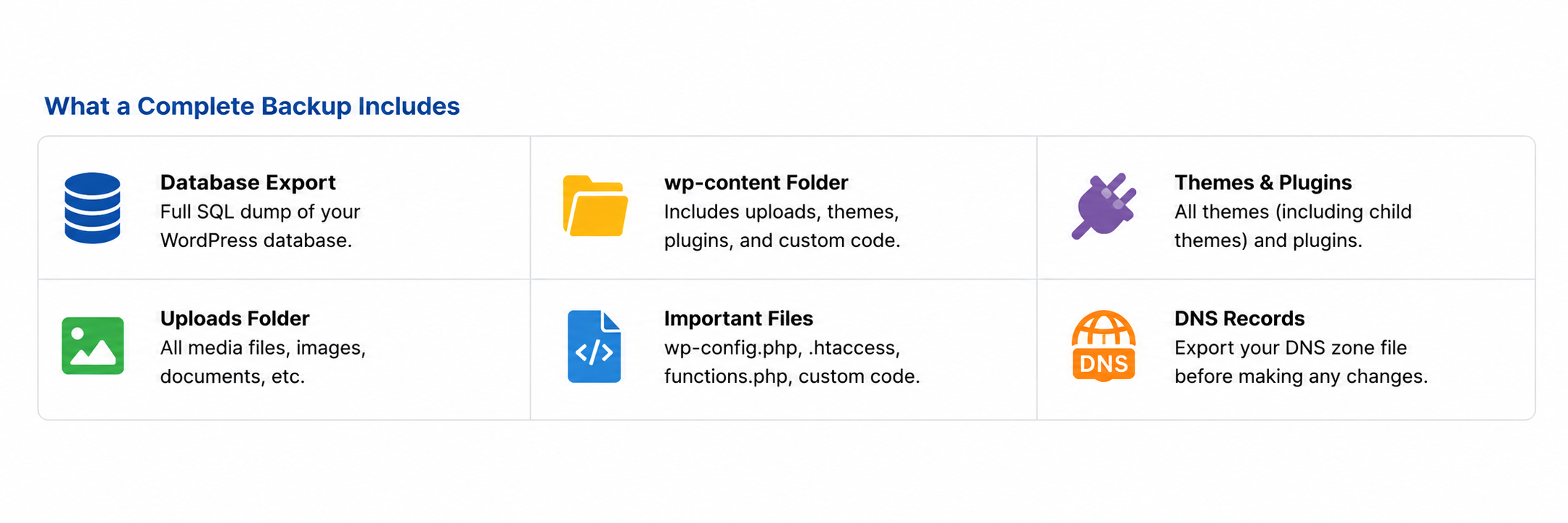
This gets skipped most often because the site “already has backups” on the existing host. That’s not a backup. That’s a copy stored next to the original useless if the server has a bad day.
A real pre-migration backup includes:
The .htaccess file lives in the WordPress root folder. On a fresh install it’s only a few lines. On a real client site that’s been running for a year or two, it can have dozens of rules added by plugins, developers, and hosting configurations and most migration tools replace it with a clean default.
That default file is enough for the homepage to load. Which is exactly why the problem gets missed.
What a clean WordPress .htaccess looks like:
# BEGIN WordPress
<IfModule mod_rewrite.c>
RewriteEngine On
RewriteBase /
RewriteRule ^index.php$ - [L]
RewriteCond %{REQUEST_FILENAME} !-f
RewriteCond %{REQUEST_FILENAME} !-d
RewriteRule . /index.php [L]
</IfModule>
# END WordPress
A real client site usually has much more. Here is what gets added over time and disappears after migration:
Manual 301 redirects
Developers sometimes write redirects directly into .htaccess faster than a plugin, and they work even if WordPress fails to load. They are invisible in the dashboard. If the new server generates a fresh file, these redirects disappear and old pages return 404 errors with no warning.
Redirect 301 /old-service-page/ https://example.com/services/
Redirect 301 /about-us https://example.com/about/
Redirect 301 /blog/2021/old-post/ https://example.com/blog/updated-post/
Cache plugin rules (WP Rocket, LiteSpeed, W3 Total Cache)
Cache plugins write browser-caching headers, GZIP compression, and sometimes redirect logic directly into .htaccess. After migration, the plugin panel looks normal, but the server-level rules are gone and performance benefits disappear silently. They return only when you actively regenerate cache settings.
# BEGIN WP Rocket <IfModule mod_expires.c>
ExpiresActive On
ExpiresByType text/css "access plus 1 year"
ExpiresByType application/javascript "access plus 1 year"
ExpiresByType image/jpeg "access plus 1 year"
</IfModule>
# END WP Rocket
Important: LiteSpeed Cache rules only work on LiteSpeed servers. If the site moves to Apache or Nginx, those rules do nothing or cause errors. Always check the new host’s server type before migrating to a LiteSpeed-configured site.
Translation plugin URL rules (WPML, Polylang)
Sites using WPML or Polylang with language subfolders (/ne/, /de/) sometimes route URLs through .htaccess. If these rules disappear, the language switcher may still work visually, but direct URL access to translated pages returns 404s and language SEO breaks.
# Polylang language routing
RewriteRule ^ne/(.*)$ /index.php?lang=ne&$1 [QSA,L]
RewriteRule ^en/(.*)$ /index.php?lang=en&$1 [QSA,L]
HTTPS and www redirect rules
Older sites sometimes enforce HTTPS and a canonical www / non-www version through .htaccess rather than the hosting panel. If these disappear, the site opens on both HTTP and HTTPS, or both www and non-www creating duplicate URLs and mixed-content warnings that hurt SEO.
# Force HTTPS
RewriteCond %{HTTPS} off
RewriteRule ^(.*)$ https://%{HTTP_HOST}%{REQUEST_URI} [R=301,L]

# Force non-www
RewriteCond %{HTTP_HOST} ^www.example.com [NC]
RewriteRule ^(.*)$ https://example.com/$1 [R=301,L]
Security rules (Wordfence, iThemes, manual hardening)
Security plugins block direct PHP execution in the uploads folder, disable XML-RPC, and restrict hotlinking all in .htaccess. If it disappears after migration, the new server’s attack surface is wider than the old one, with no error, no alert, and no visible sign.
# Disable XML-RPC
<Files xmlrpc.php>
Order deny,allow
Deny from all
</Files>

# Block PHP execution in uploads
<Directory "/wp-content/uploads">
<Files *.php>
Deny from all
</Files>
</Directory>
What to do: Before migration, open .htaccess in cPanel File Manager or via FTP. Copy everything and save it as a plain .txt file outside the old server. After migration, open the new .htaccess, compare it line by line against the saved copy, keep what is still relevant, remove anything tied to the old domain or staging URL, and regenerate cache plugin rules from the plugin settings panel. Then test old redirect URLs manually and never assume they were transferred.
Migration is the right moment to remove what the site no longer needs unused plugins, old themes, spam comments, test posts, draft pages, and duplicate media files. These make the migration heavier and carry security risk if abandoned plugins stop receiving updates.
That said, don’t let cleanup turn into a redesign. Changing the page builder, restructuring URLs, replacing themes, and moving servers at the same time makes it nearly impossible to figure out what broke and why. Keep the scope tight.
Check Google Analytics and find the lowest-traffic window usually late at night on a weekday. Avoid product launches, campaign start dates, and anything time-sensitive on the team’s calendar. Brief the paid ads team so they can pause campaigns if forms break. Brief customer service so they know why enquiry emails might slow down.
Set up a simple maintenance page so visitors see something clean instead of a half-migrated site. If the audience is global and there is no quiet window, pick the least-bad time and keep the maintenance page ready.
TTL (Time to Live) controls how long DNS records are cached across the internet. The default is often 3600 seconds one hour which means after you change the DNS, some users still hit the old server for up to an hour. Lower the TTL to 300 seconds (five minutes) at least 24 hours before the migration so the change propagates fast when you flip the switch. After the site is stable on the new server, restore the TTL to its normal value.
If the host offers staging (WP Engine, Kinsta, Cloudways, and SiteGround all do), run the entire migration on a staging copy before touching production. The first attempt almost always reveals something: a plugin that breaks on the new PHP version, an image path that didn’t update, a form that needs re-authorising. Better to find it on a private copy at 2pm than on the live site at 2am.
PHP version check: Before migration, go to Tools › Site Health in WordPress and note the current PHP version. On the new server, confirm the PHP version matches or is compatible. PHP 7.4 plugins often have issues on PHP 8.1 or 8.2 test all plugins on staging with the new PHP version before going live.
If any plugin throws a fatal error on the new PHP version, check whether an update is available. If not, find an alternative before migrating the live site.
WordPress has two parts: the files (core, themes, plugins, uploads) and the database (all content, settings, user accounts, plugin data, form entries, SEO settings). Both need to move completely.
Updating wp-config.php on the new server: this is the step that causes “Error establishing a database connection” for most first-time migrations. After moving the files, open wp-config.php on the new server and update these four values to match the new hosting database:
define( 'DB_NAME',     'your_new_database_name' );
define( 'DB_USER',     'your_new_database_user' );
define( 'DB_PASSWORD', 'your_new_database_password' );
define( 'DB_HOST',     'localhost' ); // sometimes different - check with host
Also confirm the table prefix in wp-config.php matches the prefix used in the imported database. The default is wp_ but many sites use a custom prefix for security.
Exporting and importing the database: in phpMyAdmin, select the database, click Export, choose SQL format, and download. On databases over 200MB, phpMyAdmin can time out use WP-CLI instead:
# Export wp db export backup.sql --allow-root
# Import on new server wp db import backup.sql --allow-root
File permissions: after uploading, set permissions correctly, wrong permissions, break uploads, plugin updates, and sometimes the entire admin area. Folders: 755, Files: 644, wp-config.php: 600 (more restrictive for security). In cPanel, use File Manager › Select All › Change Permissions.
Database character encoding: if the site has multilingual content, emojis, or special characters, confirm the database uses utf8mb4 encoding. Wrong encoding turns translated text and symbols into broken characters. Check by running:
SHOW VARIABLES LIKE 'character_set_database'; -- Should return: utf8mb4DNS doesn’t just point the domain at the server. It also controls email (MX records), email security (SPF, DKIM, DMARC), subdomains (CNAME), and third-party service verifications (TXT records). Change the wrong record and you can break things that have nothing to do with the website itself.
Before touching anything: export the full DNS zone or screenshot every record. Change records one at a time, not all at once. If only the website is moving, only the A record needs to change. Don’t touch MX records unless the email is also moving.
After DNS changes, test:
If any URL changes during migration, the old URL must redirect to the new one with a 301. This applies to blog posts, service pages, product pages, and any URL that carries traffic from Google, ads, emails, or backlinks.
Export the top 50 URLs from Google Search Console (Performance › Pages, sorted by clicks). Add them to a spreadsheet with Old URL and New URL columns. Also check where existing redirects live: Redirection plugin, Rank Math, Yoast Premium, Cloudflare rules, hosting panel, or .htaccess and export all of them before migration. After launch, test each important old URL manually and confirm it lands on the correct live page, not the homepage, a 404, or a redirect loop.
After migration, old domain and staging URLs can still be sitting inside the database, theme files, page builder content, menus, widgets, and plugin settings. Left unaddressed, the live site loads images from the old server, links point to staging pages, and internal navigation breaks.
WordPress stores plugin and widget settings as serialised data, and a raw SQL find-and-replace breaks serialised data when the URL length changes. Always use a tool that handles serialisation correctly:
# Using WP-CLI (recommended for large databases): wp search-replace 'https://staging.example.com' 'https://example.com' --all-tables --allow-root
# Also replace HTTP if upgrading to HTTPS: wp search-replace 'http://example.com' 'https://example.com' --all-tables --allow-root
Alternatively, use the free Better Search Replace plugin through the dashboard. After running the replacement, go to Settings › Permalinks and click Save Changes to flush rewrite rules.
Areas that are easy to miss: Elementor global settings, WPBakery saved templates, menus, form confirmation messages, custom field values, theme options panels, and for multilingual sites WPML or Polylang language-switcher settings, hreflang URLs, and translated sitemap entries.
Install the SSL certificate on the new server (most hosts do this automatically, or via cPanel › SSL/TLS). Then confirm all four domain versions redirect to one canonical HTTPS version:
http://example.com      -> https://example.com      OK
http://www.example.com  -> https://example.com      OK
https://www.example.com -> https://example.com      OK
https://example.com     -> loads correctly          OK
Check for mixed content pages loading on HTTPS while some images, scripts, or stylesheets still reference old HTTP URLs. Use the browser’s developer tools (Console tab) or WhyNoPadlock.com to find these. Don’t enable HSTS until HTTPS has been stable for at least a few days; if HSTS is turned on while SSL is misconfigured, visitors can be locked out with no easy fix.
A WordPress site can have multiple cache layers running at the same time: the WordPress cache plugin, the server or hosting cache, a CDN like Cloudflare or BunnyCDN, an object cache (Redis or Memcached), and the visitor’s browser cache. If any one still serves old files, tests pass locally while visitors see something different. Clear in this order:
After clearing, test in incognito on desktop and on mobile data mobile networks sometimes cache DNS separately. For WooCommerce sites, confirm checkout, cart, and account pages are not caching and load fresh session data.
Most migration problems look fine on day one and only surface in week two, once leads have dried up or organic traffic has dropped and nobody can say exactly why. This phase is where you catch that before it costs you anything.
Before running any other post-launch checks, confirm Google is actually allowed to crawl the live site. This is the most common silent failure after migration.
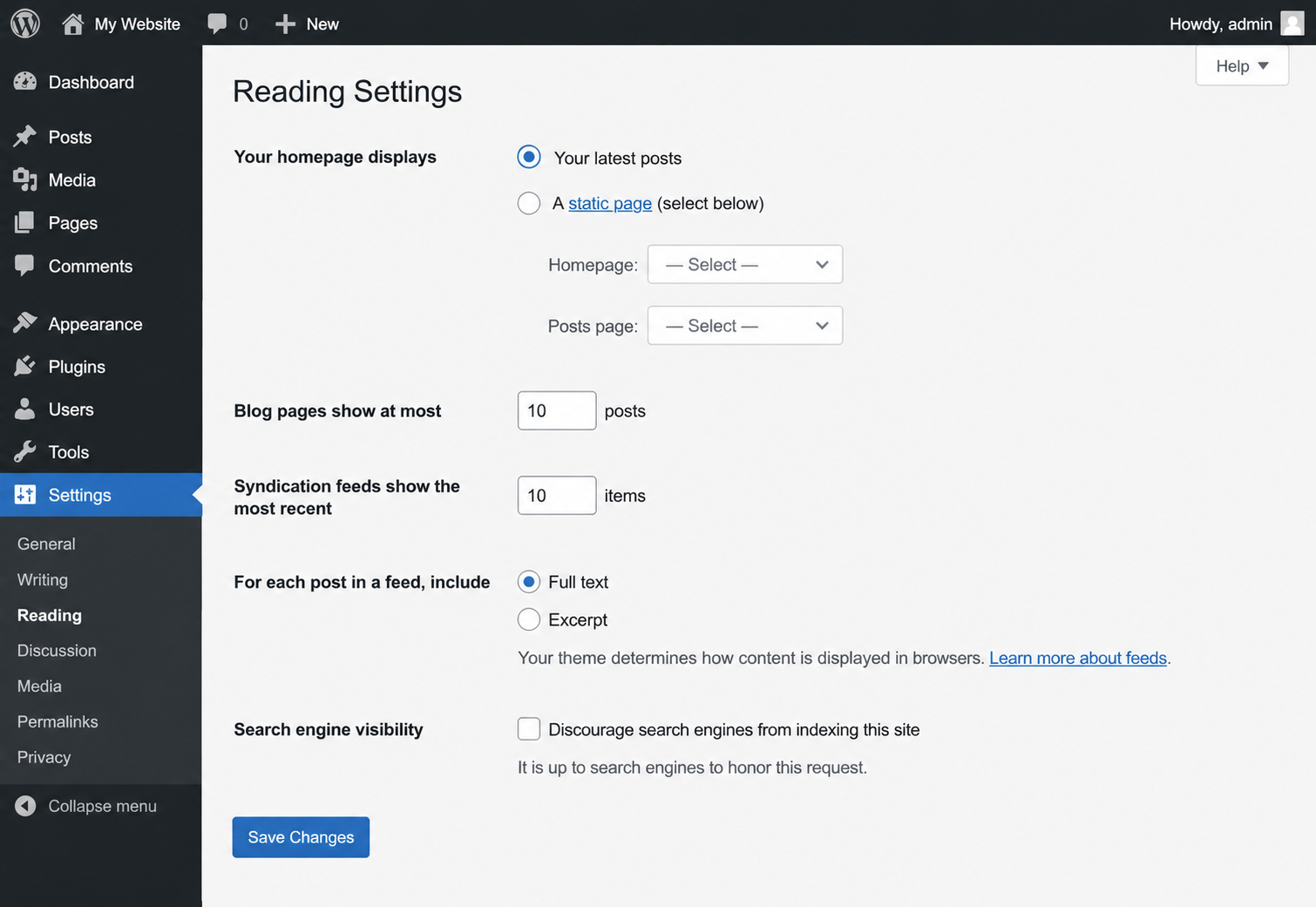
Step 1 : WordPress Reading settings: go to Settings › Reading and confirm “Discourage search engines from indexing this site” is unchecked. This option is almost always enabled on staging and frequently forgotten during launch.
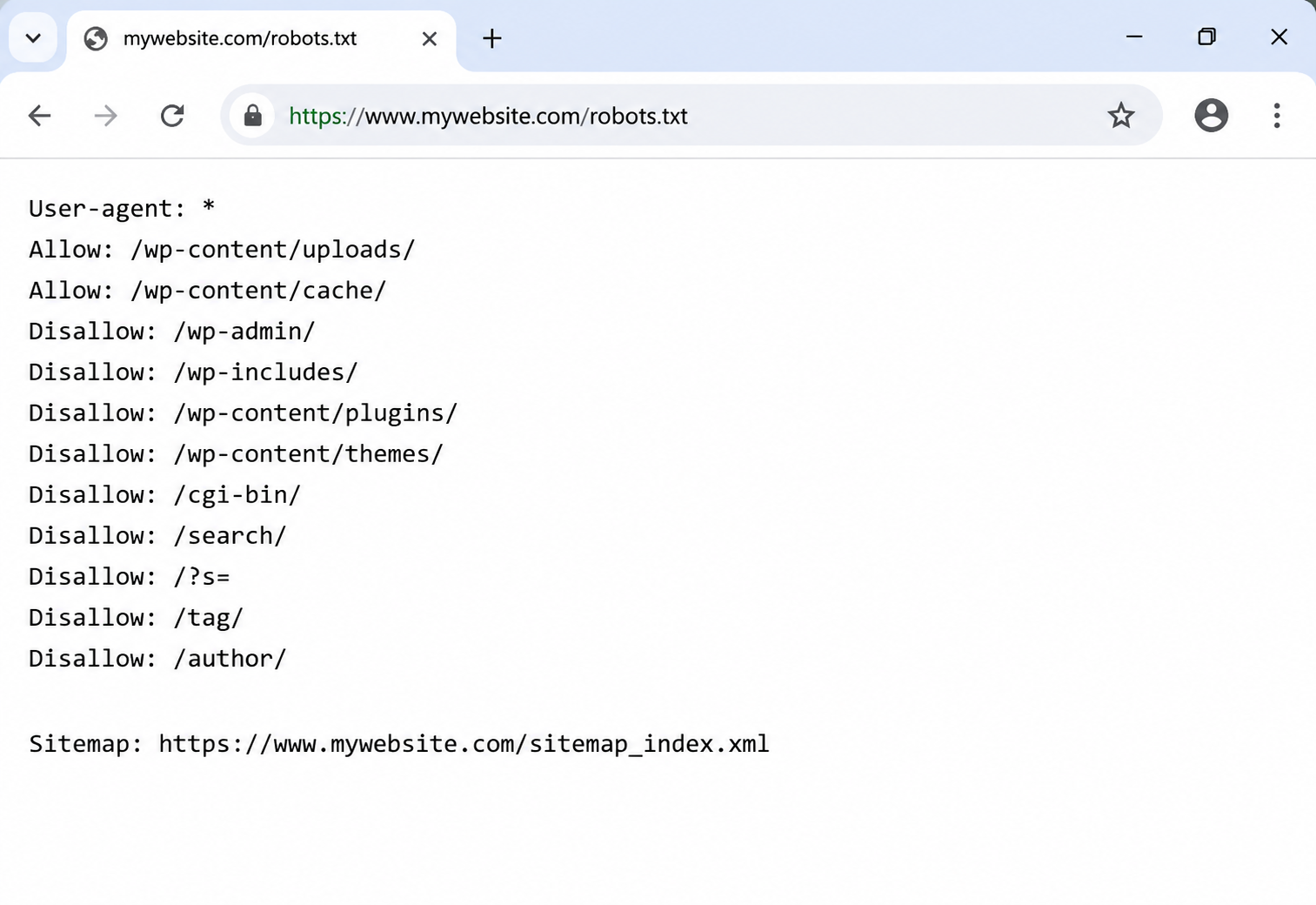
Step 2 : robots.txt: open https://yourdomain.com/robots.txt in a browser and read every line. The staging version often has a complete block that must not be on the live site.
# What staging had - must NOT be on the live site:
User-agent: *
Disallow: /

# What the live site should have:
User-agent: *
Disallow: /wp-admin/
Allow: /wp-admin/admin-ajax.php
Sitemap: https://example.com/sitemap_index.xml
One line — Disallow: / tells every search engine to crawl nothing. The site loads perfectly for visitors, but traffic drops gradually over two to four weeks, and by the time it shows in Search Console, weeks of indexing are already lost. Also confirm: the sitemap URL in robots.txt points to the live domain (not staging); language subfolders are unblocked if they need to rank; and WooCommerce pages (/cart/, /checkout/, /my-account/) are blocked from indexing to save crawl budget.
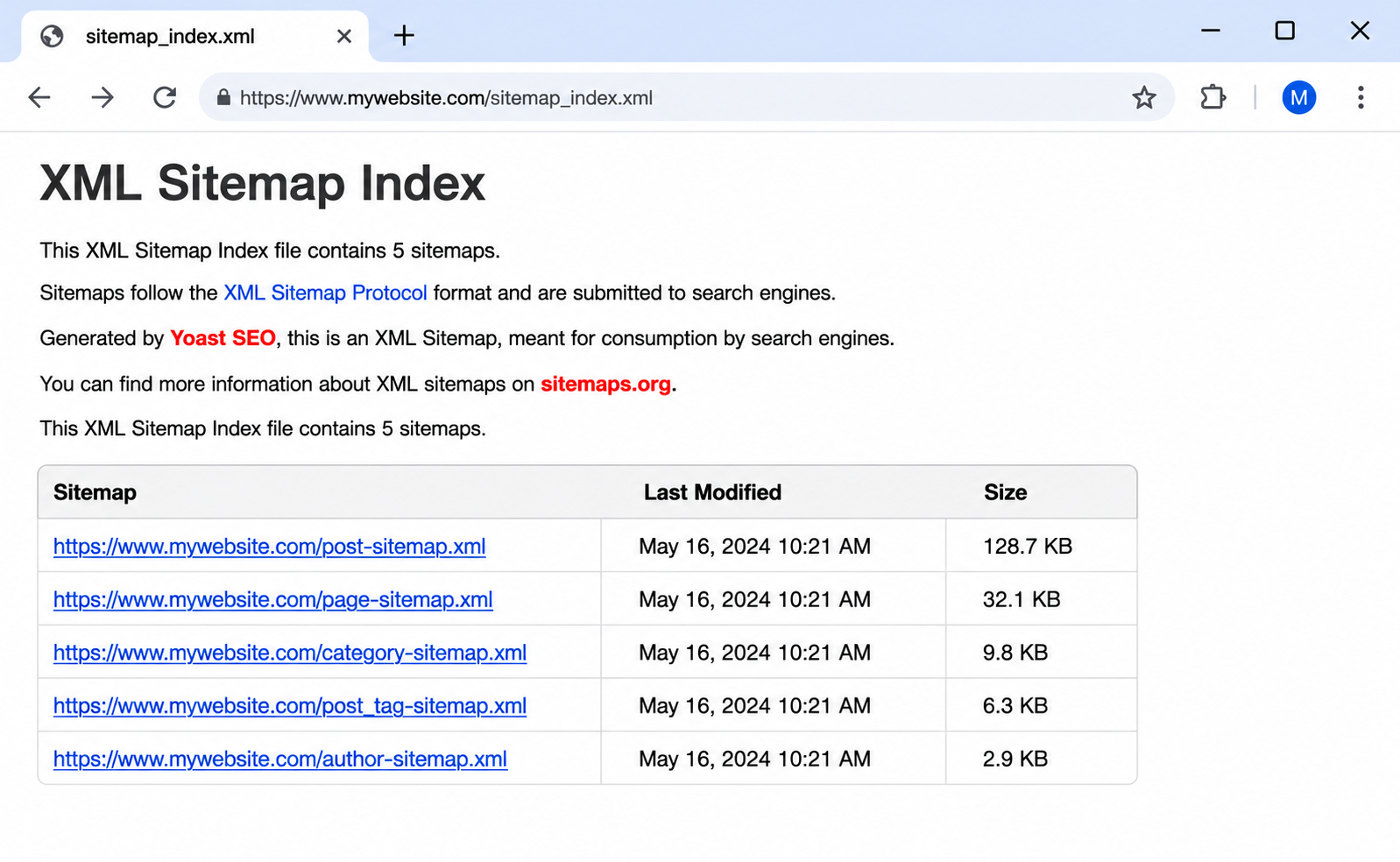
After migration the sitemap can quietly contain wrong URLs, staging links, or missing pages and none of that triggers any error on the front end. Open the sitemap index URL in a browser immediately after migration, before submitting to Google. The URLs should show the live domain with HTTPS. If they show staging, the old domain, or HTTP, the database URL replacement wasn’t completed.
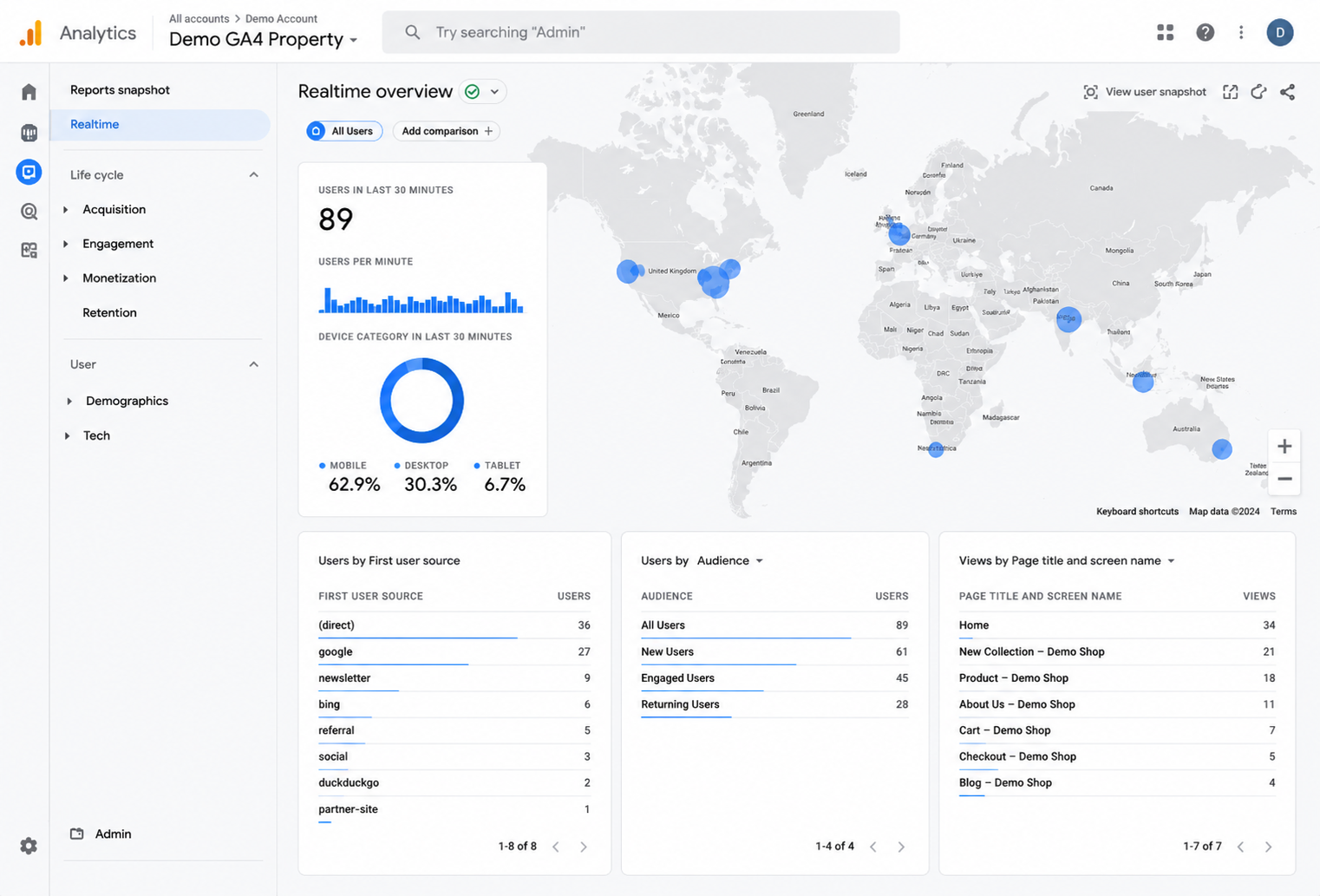
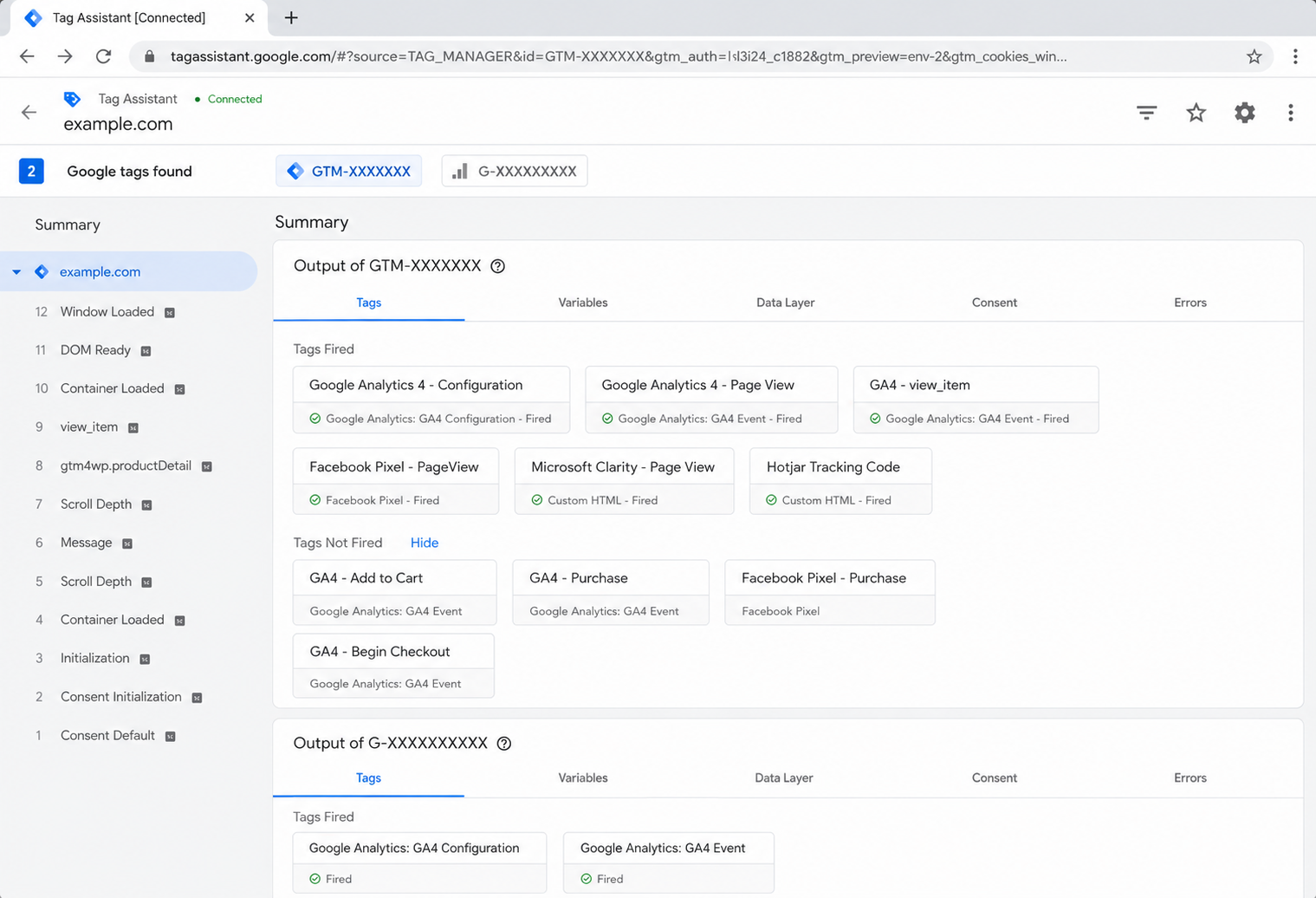
This is one of the most commonly missed post-migration checks. It’s not enough to confirm the page loads you need to confirm every tracking and measurement tool is firing correctly on the new site. We’ve seen migrations where ads kept running for weeks while conversions stopped being measured, because nobody checked the tracking.
Google Search Console
Google Analytics 4 (GA4)
Google Tag Manager (GTM)
Meta Pixel, LinkedIn Insight Tag, Google Ads Conversions
CRM tracking codes and embedded scripts are often missed because they don’t appear anywhere in the WordPress admin interface. They’re pasted directly into page-builder sections, theme header scripts, or plugin custom-code fields and while they usually survive a file migration, they can break silently when domains change or page-builder settings are reset.
The only reliable way to check these is to view the actual page source (Ctrl+U in any browser) on each key page and look for the expected scripts.
HubSpot
Salesforce / Pardot
ActiveCampaign, Mailchimp, Zoho, and Other CRM Forms
Booking Widgets and Live Chat Tools
Tip: Always check page source (Ctrl+U) on the homepage, a service page, a blog post, the contact page, and any page with a form or booking widget. CRM and tracking scripts that look fine in the WordPress admin often disappear silently after migration.
If the migration included a domain change, use the Change of Address tool in Google Search Console (Settings › Change of Address). This tells Google the old domain has permanently moved and helps transfer ranking signals.
Also update the domain in Google Analytics, Google Ads, Meta Ads, email signatures, social media profiles, Google Business Profile, and any directory listings or backlinks you control. If the domain didn’t change, open a few key pages and confirm canonical URLs in the SEO plugin point to the live domain, not staging.
A migrated site can look completely normal while important systems fail in the background. This is the check that gets skipped most often and costs the most when it does.
Forms and CTAs: submit every contact, booking, newsletter, quote, and enquiry form. Don’t stop at the success message, confirm the notification email arrives, the lead appears in the CRM, and any automations through Zapier, Make, or an email tool still fire.
Email delivery: test password reset, WooCommerce order confirmation, admin alert, and customer-facing emails. Confirm SPF, DKIM, and DMARC are correct after DNS changes using MXToolbox. If email is sent only through the server, move to a proper SMTP service Postmark, Mailgun, SendGrid, or Brevo.
Performance: run key pages through PageSpeed Insights and check Core Web Vitals (LCP, INP, CLS). Performance often shifts after migration because the server environment, PHP version, and cache configuration are different.
Full crawl: run the live site through Screaming Frog or Sitebulb. Look for 404s, broken images, old internal links, redirect chains, pages incorrectly marked no-index, and wrong canonical URLs. Fix anything the crawl surfaces before calling the migration complete.
Some migration damage is immediate; some shows up slowly. Here is the monitoring schedule to follow:
First 48 hours:
First week:
Weeks two to four:
Use this during the migration, not after.
Before:
During:
After launch:
A WordPress migration isn't hard, but it is unforgiving. Most of what goes wrong isn't dramatic. It's the small stuff that gets skipped because the site still loads fine without it: a redirect that didn't carry over, a form that quietly stopped sending, a tracking tag that went dark. Work through this guide in order and you'll catch those before they turn into lost leads or a dip in traffic a few weeks down the line.
If there's one part worth slowing down for, it's the checks after launch. Confirm the site is indexable, test your forms and email properly, and make sure your analytics, Tag Manager, and CRM codes are all still firing on the new site before you sign off. Do that, and migrating to a WordPress site stops feeling like a gamble and starts feeling like a routine job. Save the checklist above, run through it line by line on your next move, and you've got one less thing to lose sleep over.

About the Author
Mandhoj Theeng. Michael
WordPress DeveloperLearn about our Editorial Policy.
WordPress 7.0 is finally here. Instead of just skimming the release notes or rehashing what other blogs already said, we installed it ourselves and spent real time poking around to see what actually feels different for everyday users. For this review, we set up the new version in a test environment and put it side by side with WordPress 6.x. Our focus wasn’t on deep developer internals, it was on the things website owners, editors, bloggers, agencies, and business users actually bump into while using WordPress every day. After living in both versions for a while, version 7 feels less like a brand-new platform and more like a cleaner, faster, better-organized WordPress. A few changes are useful right away. Others are more foundational and will probably matter more as later updates build on them.

Learn how ChatGPT ads work, who can buy them, how context hints target conversations, what the pricing looks like, and how to track results.
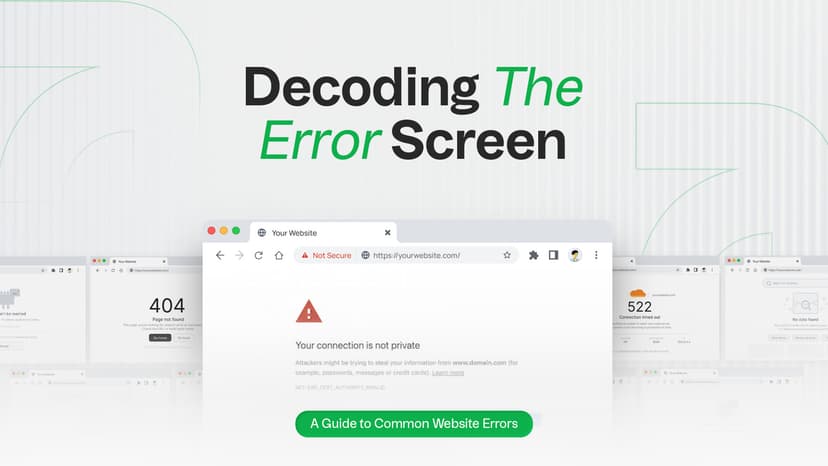
Seeing a 404, 500 or 503 error on your website? Learn what the most common website errors mean, how they impact SEO, and when it’s time to call a developer. You’re browsing a website, click a link and suddenly see a confusing message like 404 Not Found or 500 Internal Server Error. What just happened? Is it your fault? Is the site broken? Should you be worried? If you run a website, these errors can feel even more stressful. Will they hurt your Google rankings? Should you call a developer, or can you fix it yourself? This guide cuts through the technical noise. You'll learn exactly what HTTP status codes mean, why they happen, how they affect your SEO, and what you can do about each one, explained simply for website owners, marketers, and curious internet users alike.